














• About Us
  • Contact Us
  • Editorial Calendar
  • Careers
  • The Cyber Express by Cyble Vulnerability Disclosure Policy
  • Cyble Trust Portal
The Cyber Express
  • MagazineDownload
  • Firewall Daily
    • All
    • Bug Bounty & Rewards
    • Dark Web News
    • Data Breach News
    • Hacker News
    • Ransomware News
    • Vulnerabilities
    Intesa Sanpaolo Data Breach Update

    Intesa Sanpaolo Missed Unauthorized Access for 2 Years, Regulator Reveals

    Hasbro cyberattack

    Hasbro Discloses Cyberattack After Unauthorized Network Access Detected

    Stable Channel Update

    Google Chrome Update Fixes 21 Flaws, Warns of Actively Exploited Vulnerability

    Mercor cyberattack

    AI Startup Mercor Hit by Supply Chain Attack Linked to LiteLLM

    Axios npm Supply Chain Attack, Supply Chain Attack, Axios, npm Package, GTIG, CTI, North Korea, Lazarus Group, Lazarus

    North Korea’s Lazarus Group Behind the Axios npm Supply Chain Attack

    Axios supply chain attack

    Axios Supply Chain Attack Exposes Developers to Hidden Malware

    CareCloud data breach

    CareCloud Hit by Cyberattack, Probe Into Possible Data Exposure

    Intesa Sanpaolo data breach

    Intesa Sanpaolo Data Breach Exposes 3,500+ Customers, Draws €31.8M Penalty

    TCEinterview with Dr Priyanka Sunder scaled

    Cybersecurity Is a Calling, Not Just a Career — Dr. Priyanka Sunder (PD) on Women Leading the Charge

    Trending Tags

    • blackbyte ransomware
    • Ransomware
    • lapsus$ ransomware
    • Apple
    • Apple vulnerability
  • Essentials
    • All
    • Compliance
    • Governance
    • Policy Updates
    • Regulations
    AVrecon, AVrecon Malware, Home Router, FBI, SocksEscort, Proxy Network

    FBI Warns of AVrecon Malware Targeting Network Devices Across 163 Countries

    Axios npm Supply Chain Attack, Supply Chain Attack, Axios, npm Package, GTIG, CTI, North Korea, Lazarus Group, Lazarus

    North Korea’s Lazarus Group Behind the Axios npm Supply Chain Attack

    CERT-UA, AGEWHEEZE, RAT, Remote Access Trojan, Government, Hospitals

    Hackers Impersonate Ukrainian CERT to Plant a RAT on Government, Hospital Networks

    Russian information operation

    Latvia Warns of Disinformation Campaign Targeting Baltic States

    Black Friday discounts

    30% of Retailers Fail to Show Accurate Discounts, EU Probe Reveals

    DSA child protection investigation

    Snapchat Faces EU Child Safety Probe Under Digital Services Act

    Foreign-Made Router, FCC Ban, FCC

    The FCC Just Blocked Every New Foreign-Made Router from the U.S. Market

    Iran Telegram malware

    Iran-Linked Hackers Use Messaging Platform to Target Dissidents and Journalists

    DarkSword, DarkSword iOS Exploit, GTIG, Google, Lookout, iVerify, Apple, iOS Exploit

    Multiple Threat Actors Exploiting a Six-Vulnerability iOS Exploit Kit Dubbed “DarkSword”

    • Regulations
    • Compliance
    • Governance
    • Policy Updates
  • Knowledge Hub
    • All
    • How to
    • What is
    Google Chrome

    How to Remove Saved Passwords From Google Chrome (And Why You Should)

    DPDP Rules, Cyble, DPDP Act, Cyble Vantage

    How Cyble’s Front-Row Vantage Can Help You in Complying to India’s DPDP Act

    Cybersecurity Countries

    The Top 8 Countries Leading the Cyber Defense Race in 2025

    link building

    The Link Building Secrets Your Competitors Don’t Want You to Know

    Supply Chain Attack

    Supply Chain Resilience and Physical Security: Lessons for 2025

    Healthcare cybersecurity trends of 2024

    Healthcare Cybersecurity: 2024 Was Tough, 2025 May Be Better

    CEO's Guide to Take-Down Services

    Shield Your Organization: CEO’s Perspective on Take-Down Services

    Azure sign-in Microsoft

    Microsoft Announces Mandatory MFA for Azure Sign-ins to Bolster Cloud Defenses

    Signal Proxy, Signal, Signal Ban in Russia, Signal Ban in Venezuela, Bypass Signal Ban, How to Activate Signal Proxy, Signal Proxy Server

    How to Set Up Signal Proxy to Help Bypass Censorship in Russia and Venezuela

  • Features
    • Cyber Warfare
    • Espionage
    • Workforce
      • Learning & Development
  • Business
    • All
    • Appointments
    • Budgets
    • Mergers & Aquisitions
    • Partnerships
    • Press Release
    • Startups
    AI Chip, Chip Security Act

    Congress Wants a GPS Tracker on Every Advanced AI Chip America Exports

    Fraud, Agentic AI

    Agentic AI Run Fraud Campaigns Earning 4.5 Times More: Interpol

    Stryker, Stryker Cyberattack, CISA, Handala

    Stryker Says Cyberattack Disrupted Processing, Manufacturing and Shipping

    INC Ransom, Western Critical Infrastructure, Critical infrastructure, Russian GRU, Russian Threat Actor, Sandworm, APT44, Energy Supply Chain, Energy Infrastructure

    INC Ransom’s Franchise Model Is Putting Critical Infrastructure on the Chopping Block

    Terrorist Cyberattacks, UAE Cyber Security Council

    UAE Blocked AI-Powered Terrorist Cyberattacks Targeting Critical Infrastructure

    Eurail Breach, Eurail

    Eurail Breach Escalates as Stolen Passport Data and IBANs Surface on Dark Web for Sale

    Discord teen-by-default settings

    Discord Introduces Stronger Teen Safety Controls Worldwide

    The Cyber Express cybersecurity roundup

    The Cyber Express Weekly Roundup: FortiOS Exploits, Ransomware, Hacktivist Surge, and EU Telecom Rules

    Nicole Ozer appointment

    Nicole Ozer Joins CPPA to Drive Privacy and Digital Security Initiatives

    • Startups
    • Mergers & Aquisitions
    • Partnerships
    • Appointments
    • Budgets
    • Research
      • Whitepapers
      • Sponsored Content
      • Market Reports
    • Interviews
      • Podcast
  • Events
    • Conference
    • Webinar
    • Endorsed Events
  • Advisory Board
No Result
View All Result
  • MagazineDownload
  • Firewall Daily
    • All
    • Bug Bounty & Rewards
    • Dark Web News
    • Data Breach News
    • Hacker News
    • Ransomware News
    • Vulnerabilities
    Intesa Sanpaolo Data Breach Update

    Intesa Sanpaolo Missed Unauthorized Access for 2 Years, Regulator Reveals

    Hasbro cyberattack

    Hasbro Discloses Cyberattack After Unauthorized Network Access Detected

    Stable Channel Update

    Google Chrome Update Fixes 21 Flaws, Warns of Actively Exploited Vulnerability

    Mercor cyberattack

    AI Startup Mercor Hit by Supply Chain Attack Linked to LiteLLM

    Axios npm Supply Chain Attack, Supply Chain Attack, Axios, npm Package, GTIG, CTI, North Korea, Lazarus Group, Lazarus

    North Korea’s Lazarus Group Behind the Axios npm Supply Chain Attack

    Axios supply chain attack

    Axios Supply Chain Attack Exposes Developers to Hidden Malware

    CareCloud data breach

    CareCloud Hit by Cyberattack, Probe Into Possible Data Exposure

    Intesa Sanpaolo data breach

    Intesa Sanpaolo Data Breach Exposes 3,500+ Customers, Draws €31.8M Penalty

    TCEinterview with Dr Priyanka Sunder scaled

    Cybersecurity Is a Calling, Not Just a Career — Dr. Priyanka Sunder (PD) on Women Leading the Charge

    Trending Tags

    • blackbyte ransomware
    • Ransomware
    • lapsus$ ransomware
    • Apple
    • Apple vulnerability
  • Essentials
    • All
    • Compliance
    • Governance
    • Policy Updates
    • Regulations
    AVrecon, AVrecon Malware, Home Router, FBI, SocksEscort, Proxy Network

    FBI Warns of AVrecon Malware Targeting Network Devices Across 163 Countries

    Axios npm Supply Chain Attack, Supply Chain Attack, Axios, npm Package, GTIG, CTI, North Korea, Lazarus Group, Lazarus

    North Korea’s Lazarus Group Behind the Axios npm Supply Chain Attack

    CERT-UA, AGEWHEEZE, RAT, Remote Access Trojan, Government, Hospitals

    Hackers Impersonate Ukrainian CERT to Plant a RAT on Government, Hospital Networks

    Russian information operation

    Latvia Warns of Disinformation Campaign Targeting Baltic States

    Black Friday discounts

    30% of Retailers Fail to Show Accurate Discounts, EU Probe Reveals

    DSA child protection investigation

    Snapchat Faces EU Child Safety Probe Under Digital Services Act

    Foreign-Made Router, FCC Ban, FCC

    The FCC Just Blocked Every New Foreign-Made Router from the U.S. Market

    Iran Telegram malware

    Iran-Linked Hackers Use Messaging Platform to Target Dissidents and Journalists

    DarkSword, DarkSword iOS Exploit, GTIG, Google, Lookout, iVerify, Apple, iOS Exploit

    Multiple Threat Actors Exploiting a Six-Vulnerability iOS Exploit Kit Dubbed “DarkSword”

    • Regulations
    • Compliance
    • Governance
    • Policy Updates
  • Knowledge Hub
    • All
    • How to
    • What is
    Google Chrome

    How to Remove Saved Passwords From Google Chrome (And Why You Should)

    DPDP Rules, Cyble, DPDP Act, Cyble Vantage

    How Cyble’s Front-Row Vantage Can Help You in Complying to India’s DPDP Act

    Cybersecurity Countries

    The Top 8 Countries Leading the Cyber Defense Race in 2025

    link building

    The Link Building Secrets Your Competitors Don’t Want You to Know

    Supply Chain Attack

    Supply Chain Resilience and Physical Security: Lessons for 2025

    Healthcare cybersecurity trends of 2024

    Healthcare Cybersecurity: 2024 Was Tough, 2025 May Be Better

    CEO's Guide to Take-Down Services

    Shield Your Organization: CEO’s Perspective on Take-Down Services

    Azure sign-in Microsoft

    Microsoft Announces Mandatory MFA for Azure Sign-ins to Bolster Cloud Defenses

    Signal Proxy, Signal, Signal Ban in Russia, Signal Ban in Venezuela, Bypass Signal Ban, How to Activate Signal Proxy, Signal Proxy Server

    How to Set Up Signal Proxy to Help Bypass Censorship in Russia and Venezuela

  • Features
    • Cyber Warfare
    • Espionage
    • Workforce
      • Learning & Development
  • Business
    • All
    • Appointments
    • Budgets
    • Mergers & Aquisitions
    • Partnerships
    • Press Release
    • Startups
    AI Chip, Chip Security Act

    Congress Wants a GPS Tracker on Every Advanced AI Chip America Exports

    Fraud, Agentic AI

    Agentic AI Run Fraud Campaigns Earning 4.5 Times More: Interpol

    Stryker, Stryker Cyberattack, CISA, Handala

    Stryker Says Cyberattack Disrupted Processing, Manufacturing and Shipping

    INC Ransom, Western Critical Infrastructure, Critical infrastructure, Russian GRU, Russian Threat Actor, Sandworm, APT44, Energy Supply Chain, Energy Infrastructure

    INC Ransom’s Franchise Model Is Putting Critical Infrastructure on the Chopping Block

    Terrorist Cyberattacks, UAE Cyber Security Council

    UAE Blocked AI-Powered Terrorist Cyberattacks Targeting Critical Infrastructure

    Eurail Breach, Eurail

    Eurail Breach Escalates as Stolen Passport Data and IBANs Surface on Dark Web for Sale

    Discord teen-by-default settings

    Discord Introduces Stronger Teen Safety Controls Worldwide

    The Cyber Express cybersecurity roundup

    The Cyber Express Weekly Roundup: FortiOS Exploits, Ransomware, Hacktivist Surge, and EU Telecom Rules

    Nicole Ozer appointment

    Nicole Ozer Joins CPPA to Drive Privacy and Digital Security Initiatives

    • Startups
    • Mergers & Aquisitions
    • Partnerships
    • Appointments
    • Budgets
    • Research
      • Whitepapers
      • Sponsored Content
      • Market Reports
    • Interviews
      • Podcast
  • Events
    • Conference
    • Webinar
    • Endorsed Events
  • Advisory Board
No Result
View All Result
The Cyber Express
No Result
View All Result
Home Knowledge Hub How to

How to Mark an Email as Phishing in Outlook? Step-By-Step Guide

Learn How To Mark An Email As Phishing In Outlook and protect your personal info from cyber threats.

Editorial by Editorial
September 12, 2024
in How to
0
How to Mark an Email as Phishing in Outlook

How to Mark an Email as Phishing in Outlook

705
SHARES
3.9k
VIEWS
Share on LinkedInShare on Twitter

As the world increasingly relies on email communication, the threat of cyber attacks is also rising. The most common tactic malicious actors use is phishing, in which attackers attempt to access sensitive information through emails. This can be costly and damaging not only for people but also for businesses and organizations.

Get ready to enhance your cybersecurity knowledge with easy-to-follow steps to help you mark potential threats in your inbox.

How to Mark an Email as Phishing in Outlook

How to Mark an Email as Phishing in Outlook

Spotting a phishing email is crucial in protecting yourself and your sensitive information from cyber threats. These fraudulent emails come in various forms and levels of sophistication, but they often share common elements that can help you identify them. Here’s how to spot a phishing email:

1) Sender Impersonation:

Phishing emails often attempt to appear as though they are coming from a trusted sender or organization that you are familiar with.

However, upon closer inspection, you may notice slight variations in the sender’s email address or domain name. Be wary of emails from unknown or unexpected senders, especially if they claim to be from a reputable company or individual.

2) Urgency:

Phishing emails often employ urgent language or time-sensitive requests to create a sense of urgency. They may claim that your account is in jeopardy, that there has been unauthorized activity, or that you must take immediate action to avoid negative consequences. Be cautious of emails that pressure you to act quickly without giving you time to verify the request’s legitimacy.

report-ad-banner

3) Suspicious Links:

Phishing emails typically contain links or buttons that prompt you to click on them. These links may lead to fake websites that steal your login credentials or install malware on your device.

Before clicking on any links, please hover your mouse over them to preview the URL. Look for inconsistencies or misspellings in the URL, as well as the use of unfamiliar or non-standard domains.

4) Unsolicited Attachments:

Be wary of email attachments, especially if they come from unknown sources or are unexpected. Phishing emails may contain malicious attachments disguised as harmless documents or files. Opening these attachments could compromise your device and expose your personal information to cybercriminals.

5) Grammatical Errors and Poor Formatting:

Many phishing emails contain grammatical errors, spelling mistakes, and inconsistent formatting. While legitimate organizations typically review and proofread their communications, phishing emails may appear hastily written or poorly constructed. Pay attention to the language and formatting of the email, and be skeptical of any messages that seem unprofessional or unusual.

By familiarizing yourself with these common signs of phishing emails, you can better protect yourself from cyber scams. Remember to trust your instincts and verify any suspicious emails’ authenticity before taking action. Additionally, consider implementing security measures such as email filtering and two-factor authentication to enhance your defenses against phishing attacks.

How To Report a Phishing Email in Outlook?

Reporting a phishing email in Outlook is crucial in protecting yourself and your organization from cyber threats. Here’s a detailed guide on how to report a phishing email in Outlook:

Step 1: Recognize Red Flags:

Before reporting a phishing email, it’s essential to recognize the signs that indicate it may be malicious. Look for suspicious sender addresses, urgent requests, unfamiliar links or attachments, and grammatical errors. If the email raises any red flags, refrain from clicking on any links or buttons within the email.

Step 2: Use the “Report Message” Feature:

Instead of interacting with potentially harmful emails, use Outlook’s “Report Message” feature. This feature allows you to report the suspicious email to Microsoft, which helps improve their automated phishing detection systems and protects other users from falling victim to the same scam.

How to Mark an Email as Phishing in Outlook report

Step 3: Locate the “Report Message” Button:

The “Report Message” button is typically located under the “Protection” section on the “Home” ribbon when you have selected the suspicious email. However, if you do not see this button, it may indicate that your organization still needs to enable this feature.

Step 4: Click “Report Message”:

Once you have identified and selected the phishing email in Outlook, click the “Report Message” button. This action will trigger a dropdown menu where you can choose the type of threat associated with the email.

Step 5: Select “Phishing” from the Dropdown Menu:

From the dropdown menu after clicking “Report Message,” select the option labeled “Phishing.” This categorizes the email as a potential phishing attempt and prompts Outlook to take action.

Step 6: Message Disappears:

The suspicious email should disappear from your inbox after selecting “Phishing” from the dropdown menu. This indicates that the email has been reported and removed from your view.

By reporting phishing emails in Outlook, you protect yourself from potential harm and contribute to the collective effort to combat cyber threats.

Your report helps Microsoft improve its security systems and safeguards other users within your organization from falling victim to similar phishing scams. Remember to remain vigilant and report any suspicious emails promptly to help maintain a secure email environment.

How To Report a Phishing Email in Outlook’s Mobile App?

How To Report a Phishing Email in Outlook’s Mobile App

Reporting a phishing email in Outlook’s mobile app is essential for maintaining cybersecurity, especially when managing emails on the go. Here’s a step-by-step guide on how to report a phishing email using the Outlook Mobile App:

Step 1: Access the Email:

Open the Outlook Mobile App on your smartphone and navigate to the email you suspect to be a phishing attempt. Be cautious and attentive when reviewing emails, especially if they contain unfamiliar sender addresses or suspicious content.

Step 2: Click on the Three Dots:

Once you’ve located the suspicious email, tap on the three dots (…) next to the delete or trash icon. This action will bring up a drop-down menu with various options for managing the email.

Step 3: Select “Report Junk”:

From the drop-down menu, select the option labeled “Report Junk.” This action indicates to Outlook that the email is potentially harmful or unwanted, prompting investigation by Microsoft’s security systems.

How to Mark an Email as Phishing in Outlook report option

Step 4: Choose “Phishing” Option:

After selecting “Report Junk,” you will be presented with additional options to specify the nature of the report. Look for the option to report the email as “Phishing” and tap on it to indicate that it is an attempted phishing attack.

Step 5: Confirm Your Selection:

Once you’ve chosen the “Phishing” option, confirm your selection to initiate the reporting process. Outlook will then collect relevant information about the suspicious email and take appropriate action to analyze and mitigate the threat.
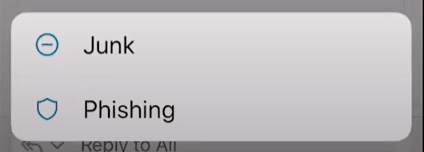
How to Mark an Email as Phishing in Outlook Selection

By reporting phishing emails through the Outlook Mobile App, you contribute to the overall security posture of your organization and help protect yourself and others from falling victim to cyber threats. Remember to remain vigilant and report any suspicious emails promptly, whether you’re using the desktop or mobile version of Outlook.

Cybersecurity is a collective effort, and every report counts towards creating a safer online environment for everyone.

Why Report Phishing in Outlook?

Reporting phishing emails in Outlook is crucial for several reasons:

  • Protect Yourself: By reporting phishing emails, you help protect yourself from falling victim to cybercriminals who aim to steal your personal information, financial details, or credentials. Reporting these emails ensures that you don’t inadvertently interact with malicious content or links.
  • Protect Others: Reporting phishing emails also safeguards your colleagues, friends, and contacts from potential harm. Cybercriminals often target multiple individuals with the same phishing campaign, so reporting suspicious emails can prevent others from becoming victims.
  • Improves Security Measures: When you report phishing emails in Outlook, the information is collected and analyzed by Microsoft’s security systems. This data helps enhance Outlook’s built-in security measures, such as spam filters and malware detection, making the platform safer for all users.
  • Prevents Future Attacks: Identifying and reporting phishing attempts helps Microsoft and other email providers identify patterns and trends in cybercriminal activity. This information enables them to proactively block similar phishing emails in the future, reducing the likelihood of successful attacks.
  • Supports Organizational Security: If you’re using Outlook in a professional setting, reporting phishing emails contributes to your organization’s overall cybersecurity efforts. It helps IT teams identify potential threats, investigate security incidents, and implement measures to protect sensitive data and systems.
  • Raises Awareness: Reporting phishing emails raises awareness among users about the tactics used by cybercriminals to deceive and manipulate individuals. It encourages a culture of vigilance and proactive cybersecurity practices, empowering users to recognize and respond to threats effectively.

In summary, reporting phishing emails in Outlook is a proactive step towards enhancing your own security, protecting others, and strengthening the overall cybersecurity ecosystem. It’s a simple yet effective way to combat cyber threats and contribute to a safer online environment for everyone.

How to Protect Yourself From Phishing Scams?

How to Protect Yourself From Phishing Scams

Protecting yourself from phishing scams is crucial in today’s digital age where cyber threats abound. Here are some essential tips to safeguard yourself against phishing attempts:

  • Exercise Caution: Be wary of unsolicited emails, especially those requesting personal information or urging immediate action. Genuine companies typically won’t ask for sensitive data via email.
  • Verify the Sender: Before responding to an email requesting personal information, verify the sender’s identity by contacting them directly through a trusted method, such as phone or official website.
  • Check for Suspicious Signs: Look out for red flags such as poor grammar, spelling errors, and generic greetings, which are common in phishing emails. Be cautious of emails containing urgent requests or enticing offers that seem too good to be true.
  • Avoid Clicking Links: Refrain from clicking on links or downloading attachments from unfamiliar or suspicious emails. These links may lead to fake websites designed to steal your login credentials or install malware on your device.
  • Verify Website URLs: Before entering any personal information on a website, ensure that the URL begins with “https://” and displays a padlock icon in the address bar, indicating a secure connection.
  • Stay Informed: Stay updated on the latest phishing trends and tactics by researching common phishing email subject lines and methods. Knowledge is key to recognizing and avoiding phishing attempts.
  • Report Suspected Phishing: If you receive a suspected phishing email, report it to the relevant authorities or your organization’s IT department. Most email providers offer options to report phishing emails, helping to protect others from falling victim to similar scams.
  • Use Security Software: Install reputable antivirus and anti-malware software on your devices to detect and block phishing attempts automatically. Keep your software up-to-date to ensure maximum protection against evolving threats.
  • Educate Yourself: Educate yourself and others about the dangers of phishing scams and the importance of cybersecurity awareness. Share tips and resources with friends, family, and colleagues to help them stay safe online.

By following these proactive measures, you can significantly reduce the risk of falling victim to phishing scams and protect your personal information and sensitive data from cybercriminals. Stay vigilant, stay informed, and stay safe online.

Wrapping Up!

Identifying and marking emails as phishing in Outlook is an essential step in protecting yourself from cyber threats. By following these simple steps, you can easily spot and flag suspicious emails that may try to steal your personal information or infect your computer with malware. Always be cautious when opening emails from unknown senders and never click on suspicious links or attachments. With the constantly evolving cybercrime landscape, staying vigilant and proactive in safeguarding your personal information is crucial.

So, take a few moments to review your email settings and ensure you have the tools to protect yourself. And if you encounter a potential phishing email, don’t hesitate to report it and help keep others safe. With these tips and tricks, you can confidently navigate through your inbox without worrying about falling for any scams. Stay safe out there!

Key Highlights

  • Outlook provides a simple and intuitive way to mark emails as phishing, allowing users to flag suspicious messages for further review quickly.
  • By reporting phishing emails, users contribute to improving Microsoft’s automated phishing detection systems, enhancing overall email security, and protecting against potential cyber threats.
  • Users can report phishing emails anonymously, ensuring their personal information remains protected while helping combat phishing attacks effectively.
  • Reporting phishing emails in Outlook removes the suspicious messages from the user’s inbox and helps safeguard other users within the organization by alerting Microsoft to potential phishing attempts.

FAQ’s About How to Mark an Email as Phishing in Outlook

1) How do I flag an email as spam or phishing in Outlook?

To mark an email as phishing in Outlook, select the suspicious email in your inbox, go to the top of the Outlook window, and click on the “Report Message” option. From the dropdown menu, choose “Phishing” to flag the email as a phishing attempt.

2) What happens when I mark an email as phishing in Outlook?

When you mark an email as phishing in Outlook, the email is flagged as suspicious and removed from your inbox. The information about the reported phishing email has also been sent to Microsoft to help improve their automated phishing detection systems.

3) Can I report phishing emails anonymously in Outlook?

Yes, you can report phishing emails anonymously in Outlook. When you use the “Report Message” feature to flag an email as phishing, your personal information is not included in the report sent to Microsoft. Your identity remains anonymous.

4) Will reporting a phishing email to protect my organization’s users in Outlook?

Yes, reporting a phishing email in Outlook can help protect other users within your organization. If Microsoft detects similar phishing emails reported by multiple users, they may block or quarantine the suspicious emails to prevent them from reaching other users’ inboxes.

5) Is the “Report Message” feature available in all versions of Outlook?

The availability of the “Report Message” feature may vary depending on your organization’s settings and the version of Outlook you are using. In most cases, the feature is available in Outlook for Windows, Outlook for Mac, Outlook on the Web, and Outlook Mobile.

6) Where is spam in Outlook?

In Outlook, locating the spam folder or junk email is easy. Open your Outlook account. In the folders tab on the left, click Junk Email. Mail which has been identified as possible junk email will be automatically moved to the Junk Email folder.

Share this:

  • Share on LinkedIn (Opens in new window) LinkedIn
  • Share on Reddit (Opens in new window) Reddit
  • Share on X (Opens in new window) X
  • Share on Facebook (Opens in new window) Facebook
  • More
  • Email a link to a friend (Opens in new window) Email
  • Share on WhatsApp (Opens in new window) WhatsApp

Related

Tags: How to Mark an Email as Phishing in OutlookPhishing in OutlookThe Cyber Express
Previous Post

TCE Exclusive: Kavitha Srinivasulu’s Odyssey Through Cybersecurity Challenges and Triumphs

Next Post

Low-Code/No-Code: The Key to Intelligent Automation and Agile Business Management

Next Post
Low-Code/No-Code

Low-Code/No-Code: The Key to Intelligent Automation and Agile Business Management

Threat Landscape Reports 2025

❮ ❯
Cyble-Vision


Follow Us On Google News

Latest Cyber News

AVrecon, AVrecon Malware, Home Router, FBI, SocksEscort, Proxy Network
Malware News

FBI Warns of AVrecon Malware Targeting Network Devices Across 163 Countries

April 2, 2026
Intesa Sanpaolo Data Breach Update
Cyber News

Intesa Sanpaolo Missed Unauthorized Access for 2 Years, Regulator Reveals

April 2, 2026
Hasbro cyberattack
Cyber News

Hasbro Discloses Cyberattack After Unauthorized Network Access Detected

April 2, 2026
Stable Channel Update
Firewall Daily

Google Chrome Update Fixes 21 Flaws, Warns of Actively Exploited Vulnerability

April 1, 2026

Categories

Web Stories

Do This on Telegram, Your Bank Account Will Become Zero
If You Install the iOS 18 Beta, Your iPhone Could Be Hacked
Cricket World Cup Ticketing Systems Under Cybersecurity
Cyber Threats and Online Ticket Scams During the NBA Finals
Biometric Data Security: Protecting Sensitive Information

About

The Cyber Express

#1 Trending Cybersecurity News and Magazine

The Cyber Express is a handbook for all stakeholders of the internet that provides information security professionals with the latest news, updates and knowledge they need to combat cyber threats.


Contact

For editorial queries: [email protected]

For marketing and Sales: [email protected]


Quick Links

  • About Us
  • Contact Us
  • Editorial Calendar
  • Careers
  • The Cyber Express by Cyble Vulnerability Disclosure Policy
  • Cyble Trust Portal

Our Address

We’re remote friendly, with office locations around the world:

San Francisco, Atlanta, Rome,
Dubai, Mumbai, Bangalore, Hyderabad,  Singapore, Jakarta, Sydney, and Melbourne


Headquarters:

The Cyber Express LLC
10080 North Wolfe Road, Suite SW3-200, Cupertino, CA, US 95014


India Office:

Cyber Express Media Network
HD-021, 4th Floor, C Wing, Building No.4. Nesco IT Park, WE Highway, Goregaon East, Mumbai, Maharashtra, India – 4000063

  • Privacy Statement
  • Terms of Use
  • Write For Us

© 2026 The Cyber Express - Cybersecurity News and Magazine.

Welcome Back!

Login to your account below

Forgotten Password?

Retrieve your password

Please enter your username or email address to reset your password.

Log In

Add New Playlist

No Result
View All Result
  • Magazine
  • Firewall Daily
  • Essentials
    • Regulations
    • Compliance
    • Governance
    • Policy Updates
  • Knowledge Hub
  • Features
    • Cyber Warfare
    • Espionage
    • Workforce
      • Learning & Development
  • Business
    • Startups
    • Mergers & Aquisitions
    • Partnerships
    • Appointments
    • Budgets
    • Research
      • Whitepapers
      • Sponsored Content
      • Market Reports
    • Interviews
      • Podcast
  • Events
    • Conference
    • Webinar
    • Endorsed Events
  • Advisory Board

© 2026 The Cyber Express - Cybersecurity News and Magazine.

Are you sure want to unlock this post?
Unlock left : 0
Are you sure want to cancel subscription?
-
00:00
00:00

Queue

Update Required Flash plugin
-
00:00
00:00
Do This on Telegram, Your Bank Account Will Become Zero If You Install the iOS 18 Beta, Your iPhone Could Be Hacked Cricket World Cup Ticketing Systems Under Cybersecurity Cyber Threats and Online Ticket Scams During the NBA Finals Biometric Data Security: Protecting Sensitive Information